/
mailto:support@verypdf.com
PDF Stamp SDK v2.3. 1
User manual 1
Introduction. 3
Features. 4
Limitations in the trial version. 4
PDF Stamp with SDK methods description. 5
Open and Close. 5
VeryStampOpen. 5
VeryStampClose. 5
Text stamping. 6
VeryStampAddText 6
Image stamping. 9
VeryStampAddImage. 9
Graphics stamping. 12
VeryStampAddLine. 12
Page range. 13
VeryStampSetFunction. 13
Undo Stamp. 14
VeryStampUndo. 14
Contact 15
PDF Stamp is an
advanced product that enables you to stamp content into a PDF document. Besides
images, texts, PDF Stamp is able to add links. These processes can be realized
in a determined number of pages with precise control over the size and position,
the stamped text and/or images become a permanent part of each PDF document.
There is no limit to the amount of stamps you could apply to a single document
and no limit to the amount of documents you can stamp, as special feature you
can integrate PDF Stamp into yourself programs (Include client side and Server
side applications).
PDF Stamp lets
you stamp watermarks such as "Confidential" on pages that include sensitive
information or "Draft" on a preliminary PDF document to be distributed for
review. You can stamp PDF document names, revision numbers, Date/Time stamps,
bates numbering, pages numbers, contact information or any text that you need
added to the file.
With the JPEG
image support you can stamp company logos, author signatures, products, charts
or any artwork in JPEG format. A Scale feature is provided with image stamping
to easily increase or decrease the size of the stamped image, leaving the
original image size intact.
Use stamp PDF to
apply text, watermarks and backgrounds to a PDF document. With stamp PDF, users
can customize the content, appearance and action of each stamp as well as
combining multiple stamps into one stamp profile. This includes aligning and
setting the size of each stamp, or even making your stamps behave like
hyperlinks.
With PDF stamp COM/SDK, you can:
 Stamp text and
dynamic text
Stamp text and
dynamic text- Apply page numbers
- Apply image watermarks (JPEG, GIF, TIF, TIFF, PCX, PNG, TGA,
ICO, BMP, JP2, PNM image formats)
- Specify the position, scale and angle of
rotation for text and image stamps
- Set actions
for individual stamps
- Use all of these functions in batch
process
-
Do NOT need Adobe Acrobat software
-
Support up to
PDF1.7 document format (formerly only supported
by Acrobat 8.0)
- Support Windows 98, ME, NT, 2000, XP, 2003,
Vista and both 32 and 64 bit systems
- Support stamp to the page header and page footer
- Support image
stamps with various image formats (eg.
JPEG, GIF, TIF, TIFF, PCX, PNG, TGA,
ICO, BMP, JP2, PNM image formats)
- Support text
stamps with various effects
- Support graphics stamps (Line and
Rectangle)
- Output file (-o) - Duplicates the original file with the file name you specify. Stamps are placed in the duplicate file, leaving the original copy unchanged
- Stamp pages using the standard
Base 14
Fonts and
Windows System
Fonts
- Support Font Style, Font Size, Text Modes (solid, outline), Grayscale and
RGB Color (0-255
RGB
color values supported)
- Top, bottom, vertical center, diagonal-top left and diagonal-bottom
left
- Stamp can be placed in the exact vertical center of a page (or the exact vertical center within a individual stamping
space)
- Enabling you to easily position the stamp in any location on the page
- Stamp on Top of or Underneath the original PDF document page
contents
- Text can be stamped on
Any
Angle. Any positive or negative numbers, including decimal numbers may be used to specify an angle in
degrees
- Specify start and
ending page numbers (page range)
- As an alternative to specifying static values for the text, you can use stamping variables to stamp dynamic data. Dates, times, page numbers, file names are just a few of the variables available. See the
PDF Stamp
documentation for a listing of all Stamping Variables.
- Support multiple line text stamps within one stamp
item
- JPEG, GIF, TIF, TIFF, PCX, PNG, TGA,
ICO, BMP, JP2, PNM etc. image size can be increased or decreased. No need to adjust the image size in another application before the
stamp
- Wrap text to a new line if it would otherwise be too long to fit in its margined
area
- Support various hyperlinks (web links, go to
page, open file, go to remote page)
- Justification (it's only available for multi-line
texts) -- left, right, or center
- Support Bates
Numbers
 Insert a watermark in the every page in
the stamped PDF file, this watermark will be removed in the purchased version.
Insert a watermark in the every page in
the stamped PDF file, this watermark will be removed in the purchased version.
The methods can
be divided into in several groups.
long VeryStampOpen( char *input, char
*output )
Open an existing PDF file to stamp.
input
Open an existing PDF file to stamp.
output
Output to a new
file, the default is stamp on the input PDF file, this parameter may equal NULL.
Each of these functions returns a PDF File id for the Open file. A
return value of 0 indicates an error, otherwise is succeed.
The following are error codes:
|
Error Codes
|
Meaning
|
|
0
|
Parameter error.
|
|
-1
|
|
|
-2
|
This PDF file has been encrypted.
|
|
-3
|
Version too low (must large then PDF-1.1).
|
|
Less -3
|
Other abnormity.
|
void VeryStampClose ( long id )
Description
Close the opened PDF file.
Parameters
id
Returned by
VeryStampOpen function.
Return Value
None.
long VeryStampAddText( long id, long
position,
char *string,
long color, long
alignment,
long shift_lr,
long shift_tb, long rotate, long layer,
long hollow,
long fontcode,
char *fontname, long fontsize,
lont action, char
*link, long pageno);
Description
Create a Text Stamp.
Parameters
id
Returned by
VeryStampOpen function.
position
Position where on
the page the stamp item will appear. Allowed values are Top, Bottom, Top-Left,
Bottom-Left, Center etc. If Position is 0, PDF Stamp will use the default,
Top-Left, and the stamp will appear at the Top-Left of the page.
|
position
|
Meaning
|
|
1
|
Stamps on the Top-Left of the page.
(default)
|
|
2
|
|
|
3
|
Stamps on the Top-Right of the page.
|
|
4
|
Stamps on the Right-Center of the page.
|
|
5
|
Stamps on the Right-Bottom of the page.
|
|
6
|
Stamps on the Bottom-Center of the page.
|
|
7
|
Stamps on the Left-Bottom of the page.
|
|
8
|
Stamps on the Left-Center of the page.
|
|
9
|
Stamps on the Center of the page.
|
String
String is the
content of the stamp that you will create. In your stamp the text to be stamped
must be enclosed in quotation mark, as with all other parameters in the stamp
content.
Using variables in stamp content
When you are working with documents, there is a lot of information
that varies from document to document - dates, times, filenames, etc. Even
within a document there are things that change from page to page, such as page
numbers or headers and footers. PDF Stamp software provides a large series of
variables that access this dynamic information and stamp it into your document.
Note: All variables must be preceded by the slash (\)
character. If the \ character is missing, the variable name will appear in the
stamped text. If you want to use the \ character in a stamp it must be listed in
the stamp file as \\.
Below is a table of all variables available showing the variable
name, what it does, and an example.
|
Variable
|
Format
|
Example Output
|
|
\t
|
|
e.g. 10:10:10
|
|
\d
|
|
e.g. 2003-12-30
|
|
\D
|
Local date
|
e.g. 30-12-2003
|
|
\p
|
Current page number
|
Maybe "Page \p" equal
"Page 3"
|
|
\P±n
|
Current page number ± a specified value
|
Maybe "Page \p+1" equal "Page 4"
|
|
\c
|
Total page number
|
Maybe "Total \c" equal
"Total 3"
|
|
\T
|
Title of this PDF
|
|
|
\A
|
Author of this PDF
|
|
|
\S
|
Subject of this PDF
|
|
|
\n
|
New line. Use for multi-line stamps
|
Sample stamp, line1
Sample stamp, line2
Sample stamp, line3
|
|
\\
|
\ (Use when stamp must include percentage
symbol)
|
\
|
|
\f
|
Filename
|
e.g. abc.pdf
|
|
\F
|
Filename + file path
|
e.g. C:\abc.pdf
|
|
\B |
\B(Bates Numbers) |
e.g. \B(000001)
|
color
Specify the text color, range from 0x000000-0xFFFFFF, in hex.
Alignment
Alignment are
used to align text on document pages, it only available for multi-line text
stamps,
16:
left alignment
17:
center alignment
18:
right alignment
shift_lr,
shift_tb
Offset from current position.
shift_lr: Move current stamp to left or right n point
shift_tb: Move
current stamp to top or bottom n point
For example:
.e.g shift_lr=10 Move to right 10 point
.e.g shift_lr=-10
Move to left 10 point
.e.g shift_tb=10 Move to bottom 10 point
.e.g shift_tb=-10
Move to top 10 point
rotate
The rotate
parameter provides more flexibility for stamp positioning. While a diagonal
stamp will angle text at 45 degrees, the rotate parameter may be used to
position a text or image stamp at any angle.
.e.g 45 or .e.g -45
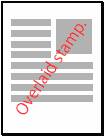
45
angle
layer
Use the layer parameter to stamp under the existing text
and/or graphics of the input PDF document.
layer =0 : is top most of all layers. (Overlay)
layer =1 : is under most of all layers. (underlay )
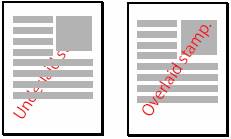
underlay
Overlay
hollow
Set Text mode
option, if set this option 0, the text mode is Solid otherwise is
Outline
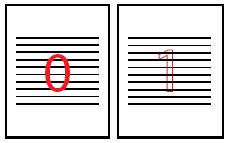
Solid
Outline
fontcode,
fontname
Set Text font
name, default is Times-Roman, you only can use one of them in one time,
fontcode can be specified one of the following values,
|
Font code
|
Font Name
|
|
100
|
Times-Roman
|
|
101
|
|
|
102
|
Times-Italic
|
|
103
|
Times-Bold-Italic
|
|
200
|
Courier
|
|
201
|
Courier-Bold
|
|
202
|
Courier-Oblique
|
|
203
|
Courier-Bold-Oblique
|
|
300
|
Helvetica
|
|
301
|
Helvetica-Bold
|
|
302
|
Helvetica-Oblique
|
|
303
|
Helvetica-Bold-Oblique
|
|
400
|
Symbol
|
fontname select a system font which installed in
your system, for example, fontname equal "Arial".
fontsize
Set the font size, default is 16 point if fontsize equal
0
e.g. fontsize equal 16
action, link, pageno
|
action
|
link
|
pageno
|
|
value
|
Meaning
|
value
|
value
|
|
0
|
None
|
None
|
None
|
|
1
|
Add a web
link to a target URL on the Web.
|
url. e.g.
"http://www.verypdf.com"
|
None
|
|
2
|
Opens a
specified page in the current document.
|
None.
|
Page NO.
|
|
3
|
Opens
specified file.
|
File name
e.g.
"c:\open.txt"
|
None
|
|
4
|
Opens specified page within
another pdf document.
|
File name
e.g.
"c:\open.pdf"
|
Page NO.
|
Nonzero if it is successful; otherwise, it is zero.
long VeryStampAddImage ( long
id, long position,
char * filename,
long
shift_lr,long shift_tb,long rotate,long layer,
long zoomW,long
zoomH,
lont action,
char *link, long pageno);
Description
Create an Image Stamp.
Parameters
id
Returned by
VeryStampOpen function.
position
Position where on the page the stamp item will appear. Allowed values are
Top, Bottom, Top-Left, Bottom-Left, Center etc. If Position is 0, PDF Stamp will
use the default, Top-Left, and the stamp will appear at the Top-Left of the
page.
|
position
|
Meaning
|
|
1
|
Stamps on the Top-Left of the page.
(default)
|
|
2
|
|
|
3
|
Stamps on the Top-Right of the page.
|
|
4
|
Stamps on the Right-Center of the page.
|
|
5
|
Stamps on the Right-Bottom of the page.
|
|
6
|
Stamps on the Bottom-Center of the page.
|
|
7
|
Stamps on the Left-Bottom of the page.
|
|
8
|
Stamps on the Left-Center of the page.
|
|
9
|
Stamps on the Center of the page.
|
filename
filename is the parameter that tells PDF Stamp software where to find the
JPEG/PNG/TIFF image file to stamp; it must a full path, for example,
"C:\input.jpg"
shift_lr,
shift_tb
Offset from current position.
shift_lr: Move current stamp to left or right n point
shift_tb: Move
current stamp to top or bottom n point
For example:
.e.g shift_lr=10 Move to right 10 point
.e.g shift_lr=-10
Move to left 10 point
.e.g shift_tb=10
Move to bottom 10 point
.e.g shift_tb=-10
Move to top 10 point
rotate
The rotate
parameter provides more flexibility for stamp positioning. While a diagonal
stamp will angle text at 45 degrees, the rotate parameter may be used to
position a text or image stamp at any angle.
.e.g 45 or .e.g -45
45
angle
layer
Use the layer parameter to stamp under the existing text
and/or graphics of the input PDF document.
layer =0 : is top most of all layers. (Overlay)
layer =1 : is under most of all layers. (Underlay)
underlay
Overlay
zoomW
zoomW parameter is used to increase or decrease the width of the
original image when it is stamped onto the PDF document. A scale of 50 will make
the image half (50%) its original width, while scales of 200 (200%) will
double it.
it may equal 0.
zoomH
zoomH parameter is used to increase or decrease the Height of the
original image when it is stamped onto the PDF document. A scale of 50 will make
the image half (50%) its original Height, while scales of 200 (200%) will
double it.
it may equal 0.
action, link, pageno
|
action
|
link
|
pageno
|
|
value
|
Meaning
|
value
|
value
|
|
0
|
None
|
None
|
None
|
|
1
|
Add a web
link to a target URL on the Web.
|
url. e.g.
"http://www.verypdf.com"
|
None
|
|
2
|
Opens a
specified page in the current document.
|
None.
|
Page NO.
|
|
3
|
Opens
specified file.
|
File name
e.g.
"c:\open.txt"
|
None
|
|
4
|
Opens specified page within
another pdf document.
|
File name
e.g.
"c:\open.pdf"
|
Page NO.
|
Return Value
Nonzero if it is successful; otherwise, it is zero.
long
VeryStampAddLine
( long id,long position,
long lineWidth,long color,
long shift_lr,long shift_tb,long rotate,long layer,
long zoomW,long zoomH)
Description
Create a line stamp.
Parameters
id
Returned by VeryStampOpen function.
position
Position where on
the page the stamp item will appear. Allowed values are Top, Bottom, Top-Left,
Bottom-Left, Center etc. If Position is 0, PDF Stamp will use the default,
Top-Left, and the stamp will appear at the Top-Left of the page.
|
position
|
Meaning
|
|
1
|
Stamps on the Top-Left of
the page. (default)
|
|
2
|
Stamps on the Top-Center
of the page.
|
|
3
|
Stamps on the Top-Right
of the page.
|
|
4
|
Stamps on the
Right-Center of the page.
|
|
5
|
Stamps on the
Right-Bottom of the page.
|
|
6
|
Stamps on the
Bottom-Center of the page.
|
|
7
|
Stamps on the Left-Bottom
of the page.
|
|
8
|
Stamps on the Left-Center
of the page.
|
|
9
|
Stamps on the Center of
the page.
|
lineWidth
Line Width.
default is 1 if
lineWidth equal 0.
color
Specify the line color, range from 0x000000-0xFFFFFF,
in hex.
shift_lr, shift_tb
Offset from current position.
shift_lr: Move current stamp to left or right n point
shift_tb: Move current stamp to top or bottom n point
For example:
.e.g shift_lr=10 Move to right 10 point
.e.g shift_lr=-10 Move to left 10 point
.e.g shift_tb=10 Move to bottom 10 point
.e.g shift_tb=-10 Move to top 10 point
rotate
The
rotate parameter provides more flexibility for stamp positioning. While a
diagonal stamp will angle text at 45 degrees, the rotate parameter may be
used to position a text or image stamp at any angle.
.e.g 45 or .e.g -45
layer
Use the layer parameter to stamp under the
existing text and/or graphics of the input PDF document.
layer =0 : is top
most of all layers. (Overlay)
layer =1 : is under
most of all layers. (Underlay)
zoomW , zoomH
Specify the line Length.
zoomW , zoomH parameter is used to increase or decrease the Length
of the original line when it is stamped onto the PDF document. original line
Length equal page width(default value zoomW= zoomH=0). A scale of 50
will make the page width (zoomW=50, zoomH=0) or height (zoomW=0,
zoomH=50) half (50%) its original Length, while scales of 200 (200%)
will double it.
Note:
if zoomW>0 then zoomH parameters ignore.
Return Value
Nonzero if it is successful; otherwise, it is zero.
long VeryStampSetFunction( long
id, long code,
long para1,long
para2,
char *para3,char
*para4);
Description
Pages to Stamp --
Specify Start page and page count , default is from first page to maximum page
number.
Parameters
id
Returned by
VeryStampOpen function.
Start page number.
Page count.
Otherwise parameters ignore.
Set which pages to stamp on by selecting a predefined range:
o Every
page
Default, Para1= Para2=0.
o Every
odd page
Para1= Para2=-1
o Every
even page
Para1= Para2=-2
o First
page
Para1= Para2=1
o Last
page
Para1= Para2=-3
o Define
your own page range
e.g. from 3 to 4 page.
Para1=3, Para2=2.
Return Value
Nonzero if it is successful; otherwise, it is zero.
long VeryStampUndo(char
*filename);
Description
Undo Stamp.
Parameters
filename
Specify pdf file name.
Return Value
Nonzero if it is successful; otherwise, it is zero.
E-mail
mailto:support@verypdf.com
 VeryPDF Cloud OCR API
Web to PDF Converter Cloud API
HTML to Image Converter Cloud API
Free Online PDF Toolbox
VeryPDF Cloud OCR API
Web to PDF Converter Cloud API
HTML to Image Converter Cloud API
Free Online PDF Toolbox  Free Online Advanced PDF Converter
Free Online PDF Compressor
Free Online PDF Splitter
Free Online DOCX to DOC Converter
Free Online Word to PDF Editor
Free Online ShareFile
Free Online RSS Feed to Email
Free Online Advanced PDF Converter
Free Online PDF Compressor
Free Online PDF Splitter
Free Online DOCX to DOC Converter
Free Online Word to PDF Editor
Free Online ShareFile
Free Online RSS Feed to Email
 Knowledge Base
 Submit a Ticket
 Send an Email
 Custom Solutions
 Support Options
 Contact Us