If you want to combine many documents of the same kind in one pdf file,how to realize?
In this article,PDFcamp Printer will show you some tips to insert the current file before the first page or append the file to the last page.
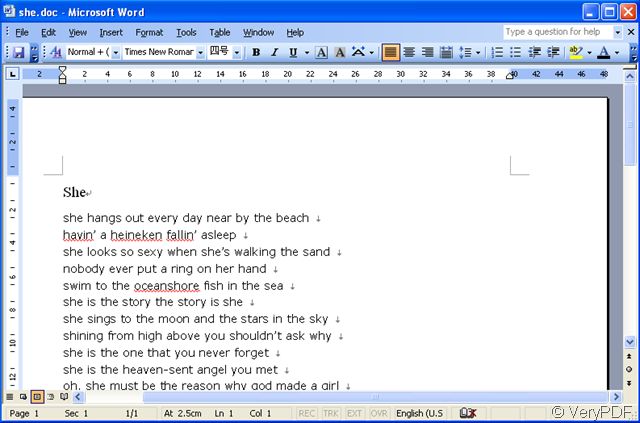
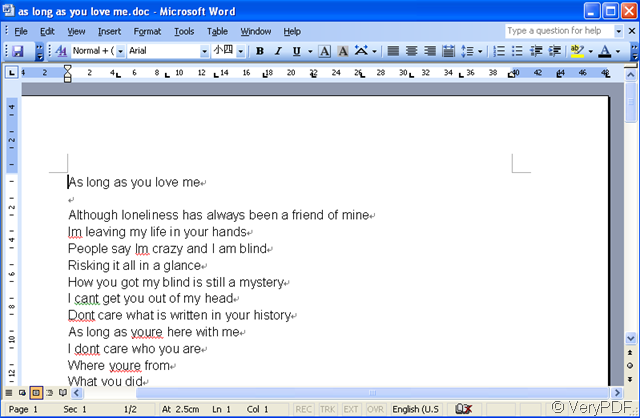
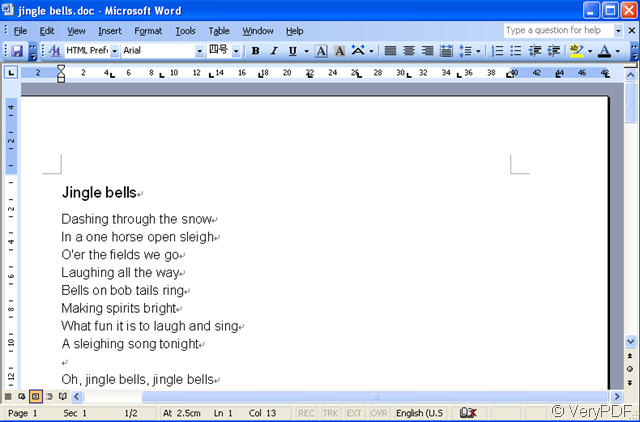
We take three doc files as an example.
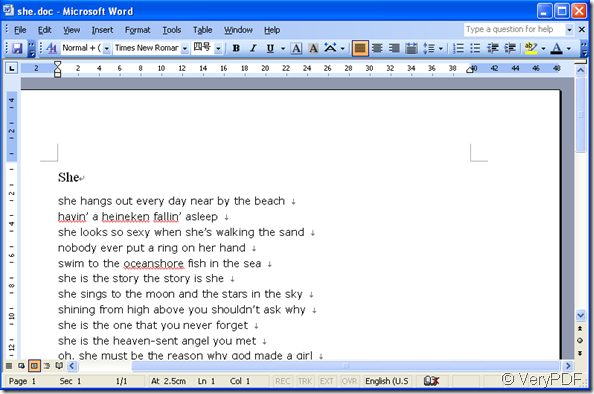
the first one
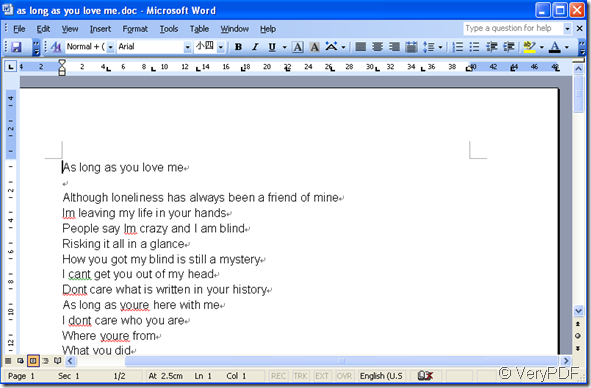
the second one
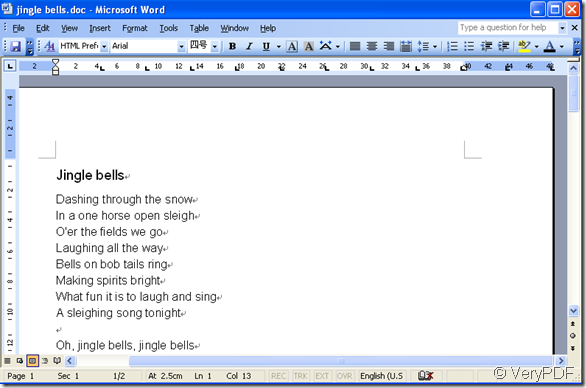
the third one
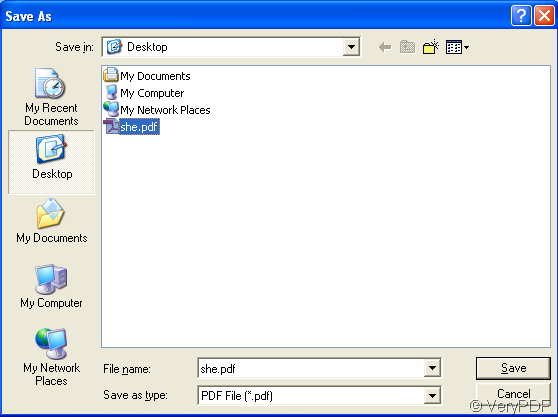
Now we convert the first one to pdf files by PDFcamp Printer.Save and name it.Then we convert the second document and insert it before the first pdf file.
1.Open the second one and press the hot key “Ctrl”+”P”to print and set all the parameter you want,then save it.Now you should click the first pdf file you’ve just converted then click “Save”
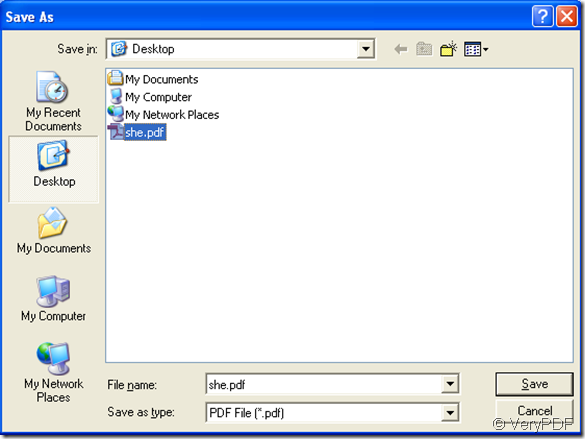
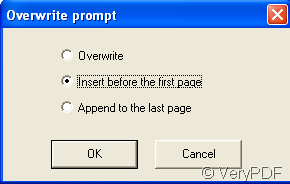
You will see a popping window which has three choices and you should choose “Insert before the first page”.
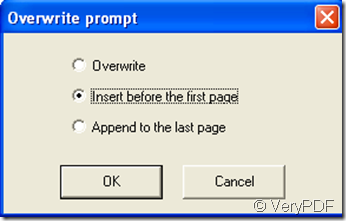
In the new resulting pdf file,we can see the two files are combined in a pdf file and the second document turns into the first one.
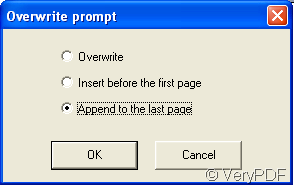
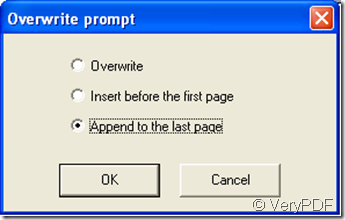
If you want to append the third document to the last page,you can do the same work and only select “Append to the last page”in the popping window.It’s very easy and interesting by using PDFcamp Printer.
VN:F [1.9.20_1166]
Rating: 0.0/10 (0 votes cast)
VN:F [1.9.20_1166]
Related Posts
- PDF Printer Driver, OEM PDF Printer Drivers for PDF Generation
- How to configure PDFcamp Printer not prompt a Save As Dialog box after install it to Windows 8 Surface Pro?
- How to call html2pdf.exe (DocConverter COM) from ASP code on Windows 2008 R2 64bit system directly?
- VeryPDF PDF Producer (VeryPDF docPrint, PDFcamp Printer), creates PDF, PS, EPS, TIFF, JPEG, etc. documents from any Windows application via the print function.
- Where to found SaveAs options in PDFcamp Printer x64 version?
- Suppress Save As dialog in PDFcamp Printer 64bit
- Batch append printing pages to existing PDF file by PDFcamp Printer (PDF Writer) x64
- PDF Camp crash upon creation of PDF, set DEP to pdfcp.exe
- Will html2pdf.exe using the conversion queue?
- VeryPDF Releases PDFcamp Printer x64 v3.0 today
- I want convert my Word document to PDF file and share it to my friends via dropbox, how to do?
- I have lots of TGA files, I want convert them to PDF files now, please help me.
- how to change PDFCamp spooler file location
- PDFcamp Printer does popup Save As dialog
- Do you know how to convert PICT file to PDF file?