When one uses Verypdf docPrint to add text comment on a page, he may want to delete the border to make the text comment more like a part of the page. In the previous articles I have introduced how to add text comment in the VeryPDF docPrint preview application, and mentioned that VeryPDF docPrint supports you to change the color, thickness, opacity of the text comment when you in the the “Annotated document” dialog box. To delete the border of the text comment, all you need to do is to change the thickness of the border.
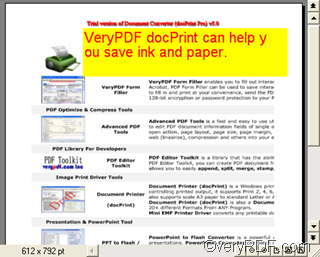
Assuming the following image illustrates the effect of the original text comment on the current page, now you want to delete the border of the text comment.
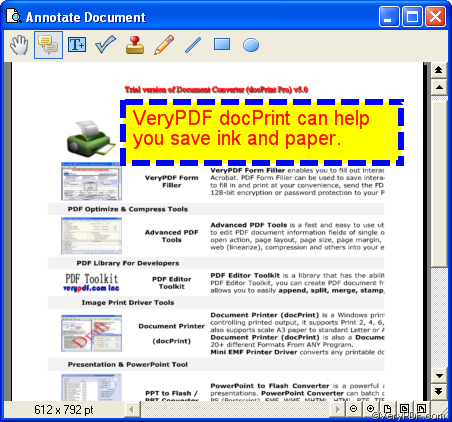
To delete the border of the text comment on the current page in the “Annotated document” dialog box, you should:
1. Trigger the comment buttons
-
If the comment buttons on the top of the “Annotated document” dialog box is gray as illustrated below, click the second button to trigger the comment buttons. Otherwise, you can not even move the text comment, let alone change the properties of it.

-
If the comment buttons are with color, skip to the next step.

2. Select the comment
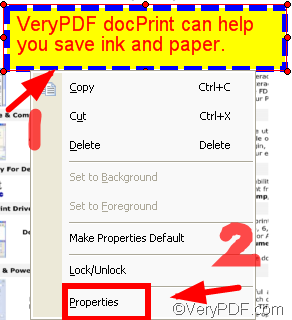
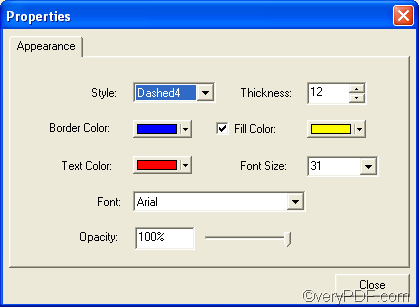
Right click with the mouse on the border of the text comment you want to make a change>choose “Properties” to open the “Properties” dialog box

3. Change the “Properties”
There are two methods for you to delete the border of the text comment box.
3.1 The first method is to change the thickness of border to “0” in the “Thickness” combo box.
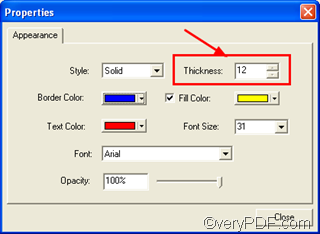
The following screenshot shows the effect of the first method:
3.2 The second method is to change the border color to the color of the background.
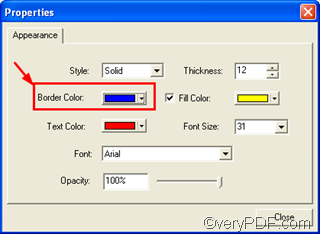
The following screenshot shows the effect after change the border color to the color of the background:

The blue border disappeared, however, the comment is with saw tooth. Hence, the second method requires another step that is to change the border style from “Dashed” to “Solid”.
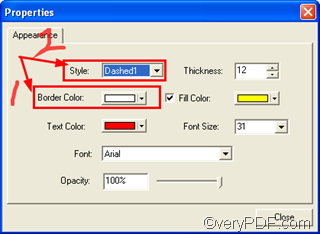
Now, let’s view the effect of the text comment on the current page.

Apparently, compared with the second method, the first one is easier and more reliable to delete the border of the comment box, since sometimes it’s not easy to adjust the border color as the same as the background color.
If you want to learn more about how to add comment on the current page in VeryPDF docPrint preview application, please visit https://www.verypdf.com/wordpress