Document Converter (docPrint Pro) v5.0 user manual
docPrint Document Converter Professional Introduction
docPrint Document Converter Professional is a software
product that dynamically converts MS Office 97/2000/XP/2003/2007, WordPerfect,
AutoCAD DWG, PostScript, Adobe Acrobat PDF and many other document types to
Adobe Acrobat PDF, PostScript,
EPS, XPS, PCL, JPEG, TIFF, PNG, PCX, EMF, WMF, GIF, TGA, PIC, PCD and BMP etc formats. It works in both GUI version and
Command Line version. With docPrint Document Converter Professional you can convert your
documents from and to 50+ formats easily.
Function and face
 |
Create PDF, PS,
EPS, XPS, PCL, EMF, WMF, PIC, PSD, PCD, GIF, TIFF, PNG, PCX, JPEG, BMP etc. files from any Windows application that
supports printing; |
|
|
Convert
Microsoft Word, HTML, Web Pages, RTF, Text, Excel, PowerPoint, Visio, AutoCAD
drawings, Adobe PDF, PS, EPS, e-mail etc. files to PDF,
Postscript, PS, EPS, EMF, WMF, XPS, PCL, PIC, PCD, GIF, TGA, JPEG,
TIFF, BMP, PCX, PNG etc. files;
More
Formats |
|
|
Do NOT need Adobe Acrobat software within
PDF conversion; |
|
|
Create PDF files from any Windows application that supports
printing; |
|
|
Convert Microsoft Word, Excel, PowerPoint, AutoCAD drawings,
e-mail to PDF files; |
|
|
Convert Microsoft Word, Excel, PowerPoint, Visio etc. files
to Postscript, PS, EPS, XPS, PCL, JPEG, TIFF, BMP, PCX, PNG, EMF, WMF, DCX, GIF, PCD, PIC,
PNM, PGM, PPM, PBM, etc. files;
More
Formats |
|
|
Save web pages in PDF format for future references;
|
|
|
Font embedding, resolution and image compression support;
|
|
|
Windows XP, Windows 2000, Windows 2003, Vista,
Windows 7 support; |
|
|
Support both 32bit and 64bit (x64) systems; |
|
|
Support user defined page sizes;
|
|
|
Work as Windows Standard Printer, accept settings from
DEVMODE structure; |
|
|
View PDF file automatically after creation;
|
|
|
Support Asian language characters;
|
|
|
Multi-language support; |
|
|
Live hyperlink support; |
|
|
Native support for 500+ Windows applications;
|
|
|
Free upgrades in the future for registered users;
|
|
|
It is convenient and easy to operate, and documents can be directly dragged from
Windows Explorer and converted fast. |
|
|
Support sorting on file name when conversion in batch. |
|
|
Support single file process, single directory process, multi-level directory process and many other process way. |
|
|
In the case of batch conversion, several document files can be merged to create a single PDF file, or each
document file be converted into a PDF file. |
|
|
Password protection for PDF files with 40 or 128 bit encryption. |
|
|
Set file permissions to restrict printing, copying, and future modifications to the document. |
|
|
Set the document title, subject, author and keywords. |
|
|
Support monitor multiple directories. |
|
|
Batch convert document files to PDF, PS, EMF, WMF, TIFF, JPEG,
XPS, PCL, PNG, BMP, etc. files; |
|
|
Support wildcard character, for example: *.doc, a*.rtf,
etc; |
|
|
Support command line operation (for manual use or inclusion
in scripts); |
|
|
Support color depth and
resolution settings within document to image conversion; |
|
|
Support create Password Protected PDFs; |
|
|
Support more than 100 paper types; (see
more details) |
Batch Conversion Formats
Input formats: DOC,
DOCX, HTML, MHTML, Web Pages, RTF, TXT, XLS, XLSX, PPT, PPTX, VSD, PDF, PS, EPS
as well as any other printable documents;
Output formats: PDF, PS, EPS,
XPS, PCL, JPEG, TIFF, BMP,
PCX, PNG, EMF, WMF, DCX, GIF, MNG, PBM, PCD, PGM, PIC,
PSD, PNM, PPM, TGA, AVS, JBG, JP2, JPC, WBMP, XBM, XPM, and
more formats.
Getting started
docPrint Document Converter Professional program is very easy to use.
All you need to do is to choose the documents you intend to convert and modify the program settings according to your preferences. After that you just need to click the "Start" button.
You may leave the default settings. However, you may want to modify them to adjust some PDF parameters in order to make them more suitable for your design.
Registration Window:
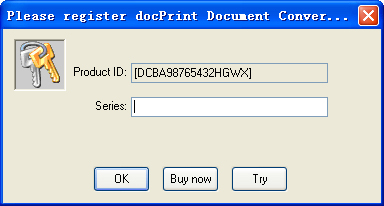
The demo version of docPrint Document
Converter Professional is a fully functional product with all features required for testing available. After you are convinced that the program fits your needs, you are strongly encouraged to purchase and register your copy of the software by acquiring a personal unlock key, the demo version has watermark in the generated PDF file.
In your evaluate period, you may click "Try" button to try this software
Main interface of the software:
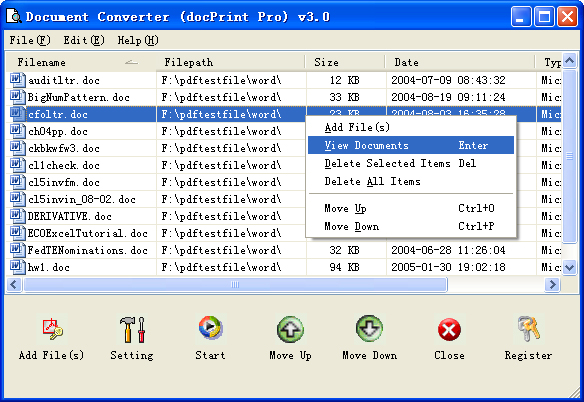
Add File(s): Add document files into file list
Setting: Set conversion options
Start: Start to convert document files
Close: Exit docPrint Document Converter Professional software
Register: Register docPrint Document Converter Professional software
View Documents: Show Documents
Delete Selected Items: Delete the selected items from the file list
Delete All items: Remove all document files from file list
Tip:
1.You may click File List Header to sort the file's order in the generated PDF file
2.Drag and drop files from Windows Explorer
Options of setting interface:
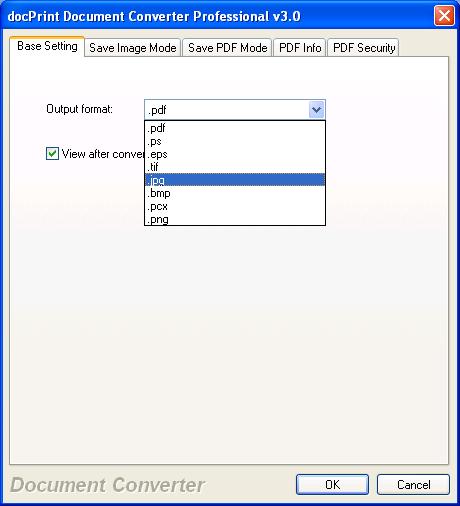
Output format: Select a format for batch output.
View after conversion: View PDF file as soon as it be created.
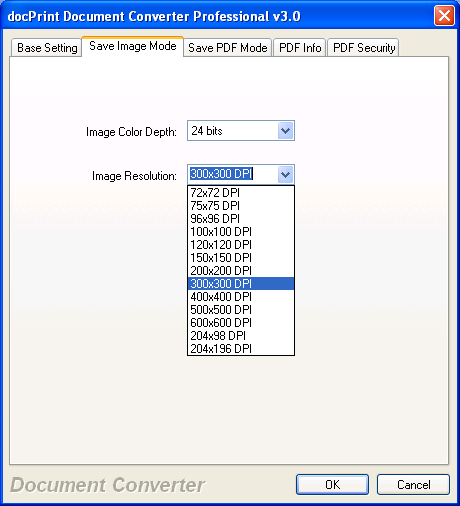
Image Color Depth: Set the color depth for the image formats
(TIFF, JPEG, PNG, PCX, BMP, etc.) within conversion.
Image Resolution: Set the DPI resolution for the image formats (TIFF, JPEG, PNG,
PCX, BMP, etc.) within conversion.
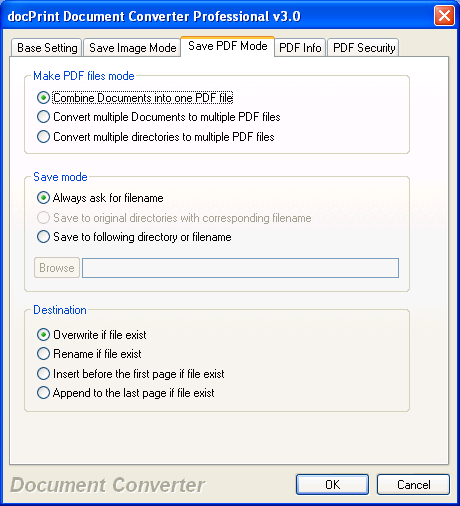
Combine documents into one PDF file: Combine all files in file list into one PDF file.
Convert multiple documents to multiple PDF files: Convert to PDF files for each
document file.
Convert multiple directories to multiple PDF files: Convert to PDF files for each directory.
Always ask for filename: Always require user input the PDF file name.
Save to original directories with corresponding filename: The PDF file be generated in the original directory.
Save to following directory or filename: Special the output filename or file path.
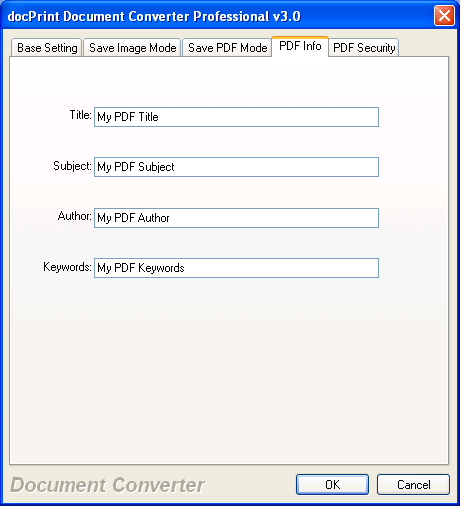
Set PDF information.
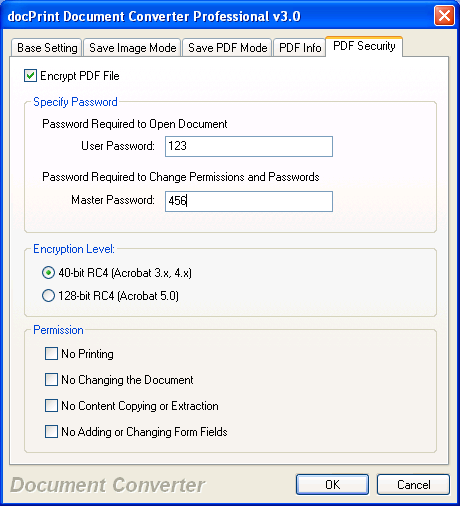
Set encrypt options in the generated PDF file.
docPrint Document Converter Professional Command Line options:
C:\>"C:\Program Files\docPrint
Pro v5.0\doc2pdf.exe"
Document Converter (docPrint Pro) v5.0
Copyright (C) 2005-2010 by VeryPDF.com Inc
Web: /artprint/index.html
mailto:support@verypdf.com
-------------------------------------------------------
Description:
Convert *.DOC;*.DOCX;*.RTF;*.PPT;*.PPTX;*.XLS;*.XLSX;*.VSD;*.PDF;*.HTML etc.
files to PDF,PS,EPS,JPEG,TIFF,PNG,BMP,WMF,EMF,XPS,PCL etc. files
Please Notice: Command Line options are CASE SENSITIVE.
Release Date: Jun 22 2008
Usage: doc2pdf [options] <-i Document Files> [-o Output]
-i <input files> : filename for input
-o <output files> : filename for output
=== PDF Output Options ===============================
-j <subject> : "subject" for PDF file
-t <title> : "title" for PDF file
-a <author> : "author" for PDF file
-k <keywords> : "keywords" for PDF file
-s openpwd=XXX : set 'open password' to PDF file
-s ownerpwd=XXX : set 'owner password' to PDF file
-s keylen=XXX : key length (40 or 128 bit)
-s keylen=0 : 40 bit RC4 encryption
(Acrobat 3 or higher)
-s keylen=1 : 128 bit RC4 encryption
(Acrobat 5 or higher)
-s keylen=2 : 128 bit RC4 encryption
(Acrobat 6 or higher)
-s permission=XXX : set permission to PDF file
-s permission=0 : Encrypt the file
only
-s permission=3900 : Deny anything
-s permission=4 : Deny printing
-s permission=8 : Deny modification
of contents
-s permission=16 : Deny copying of
contents
-s permission=32 : No commenting
===128 bit encryption only -> ignored
if 40 bit encryption is used
-s permission=256 : Deny FillInFormFields
-s permission=512 : Deny ExtractObj
-s permission=1024 : Deny Assemble
-s permission=2048 : Disable high
res. printing
-s permission=4096 : Do not encrypt
metadata
-s redirectprint=0 : Don't redirect
print job via docPrint
-s redirectprint=1 : Redirect print
job via docPrint
-s checkprintable=1
: Stop print non-printable document formats
-s ShowHTMLStatusBar=1
: Show HTML preview window during conversion
-s ShowHTMLRect=[0,0,1024,768]: Set
preview windows's position
-s printer=PDF Printer1
: Use the special printer for printing
-s nochangedefaultprinter=1
: Don't change default printer
-s convertviaserver=1
: Don't change default printer
-s outdebuglog=1
: Print log message on screen
-s orientation=1
: Set orientation to printer, same as -O parameter
-s htmlheader=XXX
: Set page header in HTML to PDF conversion
-s htmlfooter=XXX
: Set page footer in HTML to PDF conversion
-s marginleft=XXX
: Set left margin in HTML to PDF conversion
-s margintop=XXX
: Set top margin in HTML to PDF conversion
-s marginright=XXX
: Set right margin in HTML to PDF conversion
-s marginbottom=XXX
: Set bottom margin in HTML to PDF conversion
-s PrintHTMLBackground=1 or 0 : Print
background color and images in HTML to PDF conversion
-p <output Flag> : a flag for PDF output
-p 0: overwrite if PDF file exists
-p 1: insert before first page if PDF
file exists
-p 2: append to last page if PDF file
exists
-p 3: rename filename if PDF file
exists
======================================================
-g <page range> : page range for conversion, eg: 1,2-4,6
-G : don't append suffix to filename for single page file
-b <color type> : specify color type for output file
-b 1 : output black and white image
file
-b 8 : output 256 colors image file
-b 24 : output True Colors image file
-c <compression> : compression for TIFF output format
-c 1 : NONE compression
-c 2 : CCITT modified Huffman RLE
-c 3 : CCITT Group 3 fax encoding
(1d)
-c 4 : CCITT Group 4 fax encoding
-c 5 : LZW compression
-c 6 : OJPEG compression
-c 7 : JPEG DCT compression
-c 32773 : PACKBITS compression
-c 32809 : THUNDERSCAN compression
-c 88880 : 204x98 G4 ClassF TIFF
-c 88881 : 204x196 G4 ClassF TIFF
-c 88882 : 204x98 G3 ClassF TIFF
-c 88883 : 204x196 G3 ClassF TIFF
-c 88884 : CCITT Group 3 fax encoding
(2d)
-R <Rotate> : rotate page 90, 180, 270 angle
-r <resolution> : set resolution to generated image files
-r 300 : set X and Y resolution to
generated image files
-r 300x600 : set X and Y resolution
to generated image files
-r 200x300 : set X and Y resolution
to generated image files
-w <image width> : set width to generated image files, unit
is pixel
-h <image height> : set height to generated image files, unit
is pixel
-f <paper size> : set the paper size to printer
paper size can be selected either
standard papers or user defined papers,
look at following page for the
standard papers:
/artprint/document-converter/index.htm
-f 8 : standard paper size
-f "11x17in" : set 11x17inch to
printer
-f "215.9x279.4mm" : set
215.9x279.4mm to printer
-f "612x792pt" : set 612x792pt to
printer
-z <PrintZoomPaper>: set print zoom paper for MS Office
document printing
-z 12240x15840 : scale to Letter
print paper size
-z 11907x16839 : scale to A4 print
paper size
-e : set "docPrint" as default printer, otherwise, "docPrint
PDF Driver" is the default printer
-E <types> : options to process Excel Sheets
-E 0 : print all Excel sheets one by
one, and merge them together
-E 1 : print all Excel sheets one by
one, do not merge them together
-E 2 : print all sheets with one
print command from MS Excel
-E 3 : create a PDF file for each
sheet and a PDF for all sheets
-l <millisecond> : wait a few milliseconds before convert
HTML file
-V : view the generated PDF file automatically
-d : hide MS Office printing dialog within conversion
-y : create 8-bit grayscale image file
-D : improve speed for MS Office document conversion
-O <orientation> : set orientation to printer
-O 1 : PORTRAIT mode, default
-O 2 : LANDSCAPE mode
-? : Help
-------------------------------------------------------
Example:
doc2pdf -i C:\input.doc -o C:\output.pdf
doc2pdf -i C:\input.doc -o C:\output.xps
doc2pdf -i C:\input.doc -o C:\output.pcl
doc2pdf -i C:\input.docx -o C:\output.pdf
doc2pdf -i C:\input.doc -o C:\output.emf
doc2pdf -i C:\input.doc -o C:\output.wmf
doc2pdf -i C:\input.doc -o C:\output.bmp
doc2pdf -i C:\input.xls -o C:\output.pdf
doc2pdf -i C:\input.xlsx -o C:\output.pdf
doc2pdf -i C:\input.xls -o C:\output.xps
doc2pdf -i C:\input.xls -o C:\output.pcl
doc2pdf -i C:\input.ppt -o C:\output.pdf
doc2pdf -i C:\input.pptx -o C:\output.pdf
doc2pdf -i C:\input.ppt -o C:\output.xps
doc2pdf -i C:\input.ppt -o C:\output.pcl
doc2pdf -i C:\input.vsd -o C:\output.tif
doc2pdf -i C:\input.pdf -o C:\output.tif
doc2pdf -i C:\input.ps -o C:\output.jpg
doc2pdf -i C:\input.eps -o C:\output.jpg
doc2pdf -R 90 -i C:\input.ppt -o C:\output.tif
doc2pdf -R 270 -i C:\input.ppt -o C:\output.tif
doc2pdf -i "/artprint/index.html" -o
C:\output.pdf
doc2pdf -i C:\input.pdf -o C:\out.tif -b 24
doc2pdf -i C:\in.pdf -o C:\out.tif -b 1 -r 200x300
doc2pdf -i C:\in.pdf -o C:\out.jpg -b 24 -r 200x300
doc2pdf -i C:\*.doc -o C:\*.pdf
doc2pdf -i C:\*.xls -o C:\*.pdf
doc2pdf -i C:\*.xls -o C:\*.jpg
doc2pdf -p 2 -i C:\input.ppt -o C:\output.pdf
doc2pdf -a "Author" -i C:\input.dwg -o C:\output.pdf
doc2pdf -l 10000 -i
"/artprint/index.html" -o C:\output.pdf
doc2pdf -s openpwd=123 -s ownerpwd=456 -s keylen=0 -s
permission=3900 -i C:\test.doc -o C:\out.pdf
doc2pdf -s ownerpwd=456 -s keylen=2 -s permission=3900 -i
C:\test.doc -o C:\out.pdf
doc2pdf -s checkprintable=1 -i C:\*.* -o C:\*.pdf
doc2pdf -s checkprintable=1 -i C:\test.abc -o C:\out.pdf
doc2pdf -s ShowHTMLStatusBar=1 -l 10000 -i http://www.verypdf.com
-o C:\verypdf.pdf
doc2pdf -i C:\input.doc -o C:\output.txt
doc2pdf -i C:\input.ppt -o C:\output.txt
doc2pdf -i C:\input.xls -o C:\output.txt
doc2pdf -i C:\Drawing1.vsd -o C:\out.pcl -s redirectprint=1
doc2pdf -s "printer=PDF Printer1" -i C:\test.doc -o C:\out.pdf
doc2pdf -s "convertviaserver=1" -i C:\test.doc -o C:\out.pdf
doc2pdf -s "printer=PDF Printer1" -s "nochangedefaultprinter=1" -i C:\test.doc
-o C:\out.pdf
doc2pdf -# "test:123" -s runasmode=0 -i C:\test.doc -o C:\out.pdf
doc2pdf -s "htmlheader=Page Header Test" -s "htmlfooter=Page Footer Test" -i
http://www.verypdf.com -o C:\out.pdf
doc2pdf -s "htmlheader=original" -s "htmlfooter=original" -i http://www.verypdf.com
-o C:\out.pdf
doc2pdf -s "htmlheader=&w &d &T" -s "htmlfooter=&u &D &p of &P" -i http://www.verypdf.com
-o C:\out.pdf
doc2pdf -s marginleft=0 -s margintop=0 -s marginright=0 -s marginmarginbottom=0
-i http://www.verypdf.com -o C:\out.pdf
doc2pdf -s PrintHTMLBackground=1 -i http://www.verypdf.com -o C:\out.pdfHow to buy docPrint Document Converter Professional?
The docPrint Document Converter Professional order page:
/artprint/index.html
Requirements to system
Windows 2000/XP/2003/Vista/7 (32bit or
64bit) Systems.
64M or more memory.
100 MHZ CPU
 VeryPDF Cloud OCR API
Web to PDF Converter Cloud API
HTML to Image Converter Cloud API
Free Online PDF Toolbox
VeryPDF Cloud OCR API
Web to PDF Converter Cloud API
HTML to Image Converter Cloud API
Free Online PDF Toolbox  Free Online Advanced PDF Converter
Free Online PDF Compressor
Free Online PDF Splitter
Free Online DOCX to DOC Converter
Free Online Word to PDF Editor
Free Online ShareFile
Free Online RSS Feed to Email
Free Online Advanced PDF Converter
Free Online PDF Compressor
Free Online PDF Splitter
Free Online DOCX to DOC Converter
Free Online Word to PDF Editor
Free Online ShareFile
Free Online RSS Feed to Email
 Knowledge Base
 Submit a Ticket
 Send an Email
 Custom Solutions
 Support Options
 Contact Us